
Writing and images
Click New note in the sidebar and start typing. The first line becomes the note’s title. To set a title by hand, hover over the note in the sidebar and click Rename.
Find the toolbar
Section titled “Find the toolbar”The toolbar sits above the note. Select some text, then choose a formatting control. With no selection, text styles such as bold apply to what you type next.
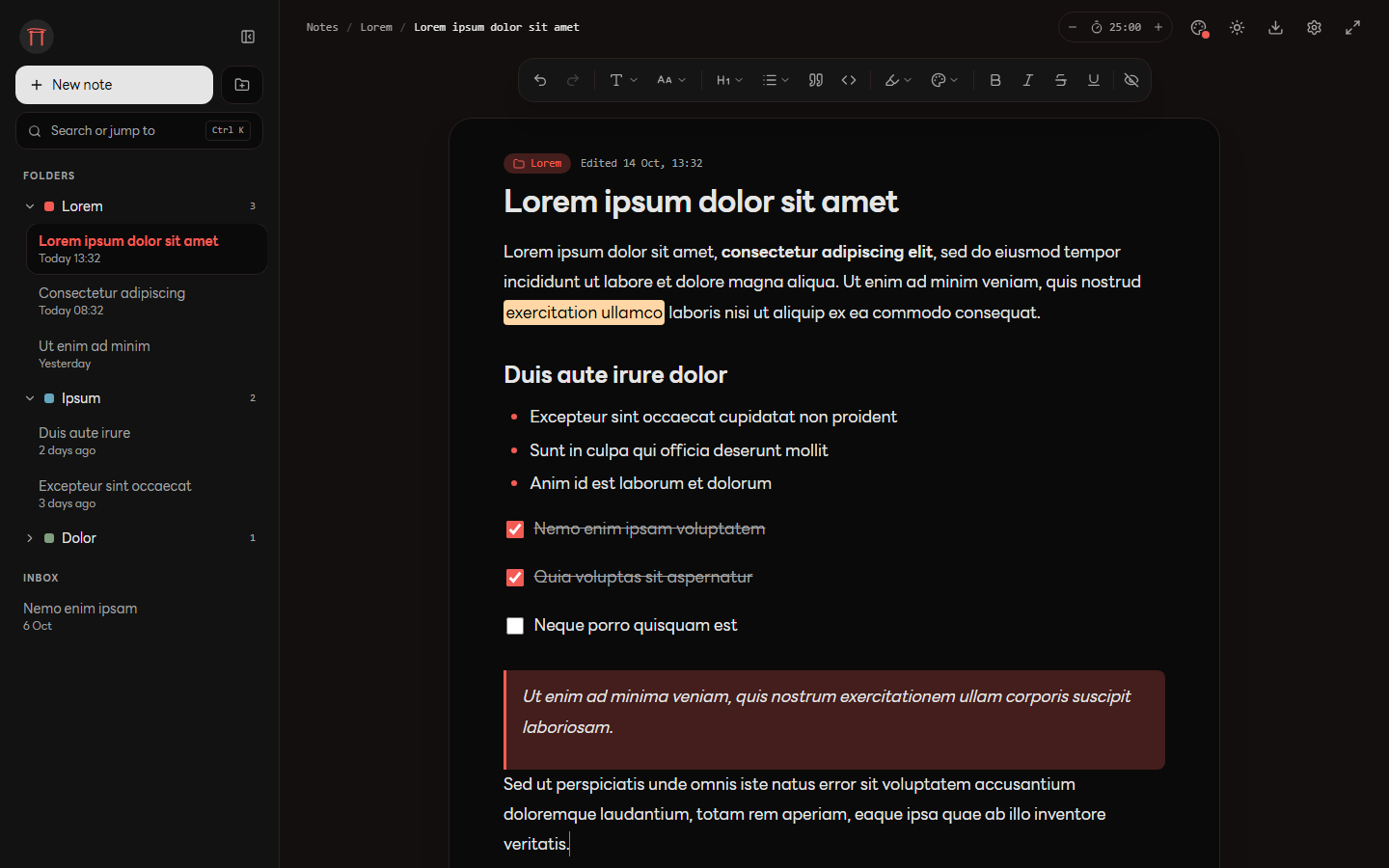
Hover over a toolbar button to see its name. If the toolbar is hidden, click Show Toolbar or press Ctrl + Shift + T.
Format your note
Section titled “Format your note”| Control | Use it for |
|---|---|
| Heading | Headings from level 1 to 4. Click the selected heading level again to return to a paragraph. |
| List | Bulleted lists, numbered lists and checklists. |
| Quote | A block quote for an excerpt or a callout. |
| Code | A code block. |
| Bold, Italic, Strikethrough, Underline | Emphasis on selected text or the text you type next. |
| Highlight | A colored highlight behind the text. |
| Text Color | The color of the text itself. |
| Font Family, Font Size | The typeface and text size. |
| Undo, Redo | Changes in the current editing session. |
For a checklist, choose the checklist option in List, type an item and press Enter to add another. Click an item’s checkbox to mark it complete. On an empty list item, press Backspace at its start to return to a paragraph.
Add an image
Section titled “Add an image”Paste an image from the clipboard with Ctrl + V, or drag an image file from File Explorer into the note. Drop it where you want it to appear.
Images are kept with your local Raku data. Use Export and backup when sharing a note or moving to another computer.
Resize or remove an image
Section titled “Resize or remove an image”- Click the image to select it.
- Drag the handle at its bottom-right corner to resize it. Its proportions stay the same.
- To remove it from the note, select the image and press
DeleteorBackspace.
Auto-save
Section titled “Auto-save”You do not need a Save button. By default, Raku saves two seconds after you stop typing. Change that delay to 1s, 2s or 5s in Settings → Writing → Auto-save after.
If a save error appears, keep the app open and copy your current text somewhere safe before trying the steps in Troubleshooting.
Auto-save stores your current notes. Keep a separate backup for recovering deleted notes or moving your work.
Next: organize your notes or use the keyboard shortcuts.